Backups & Restore
Protect your world and progress by creating backups. You can restore them at any time if something goes wrong.
Always create a backup before installing modpacks, updating mods, or making major changes to your server!
Create a Backup
-
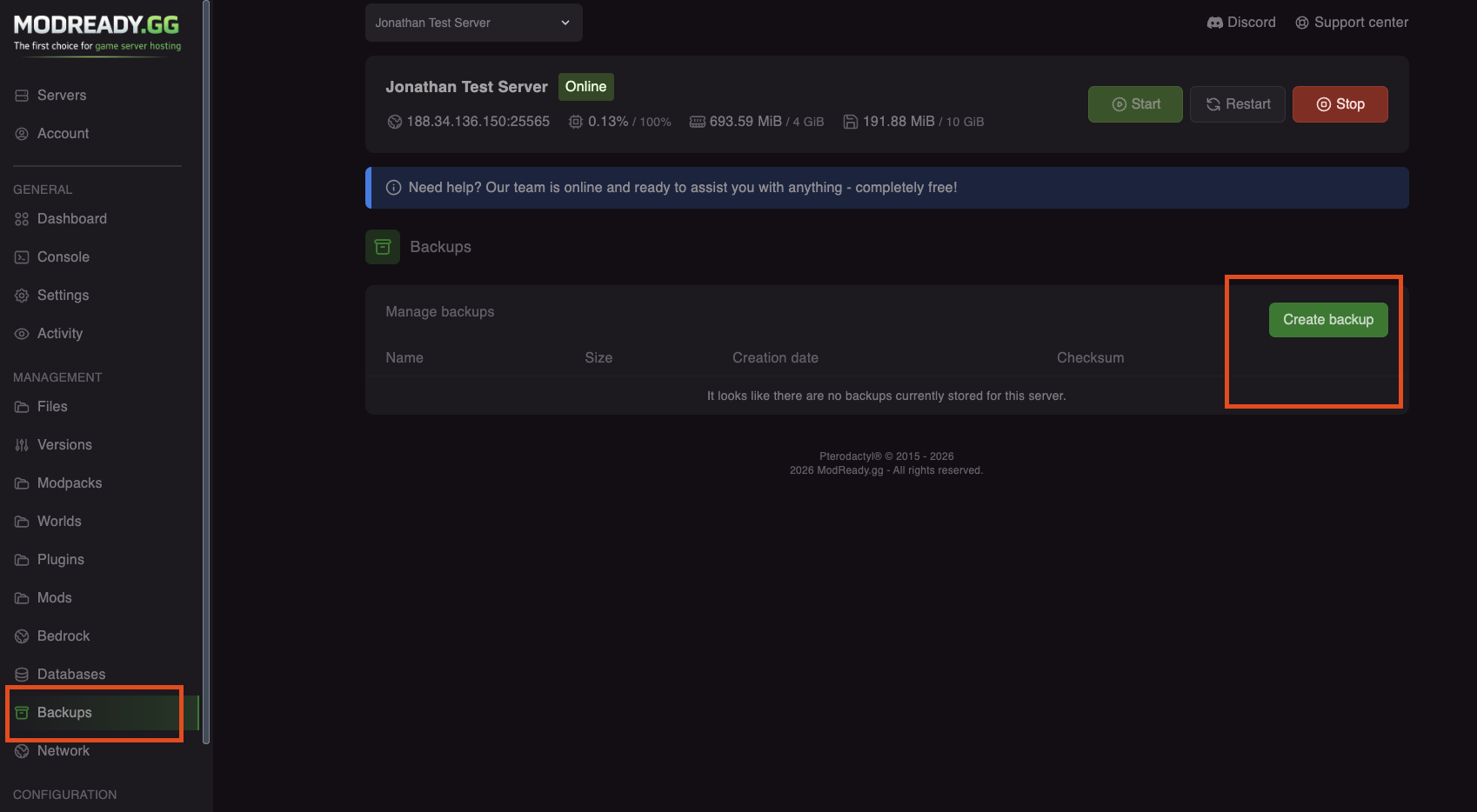
Open the Backups Tab
In your server dashboard, click Backups in the left sidebar.
-
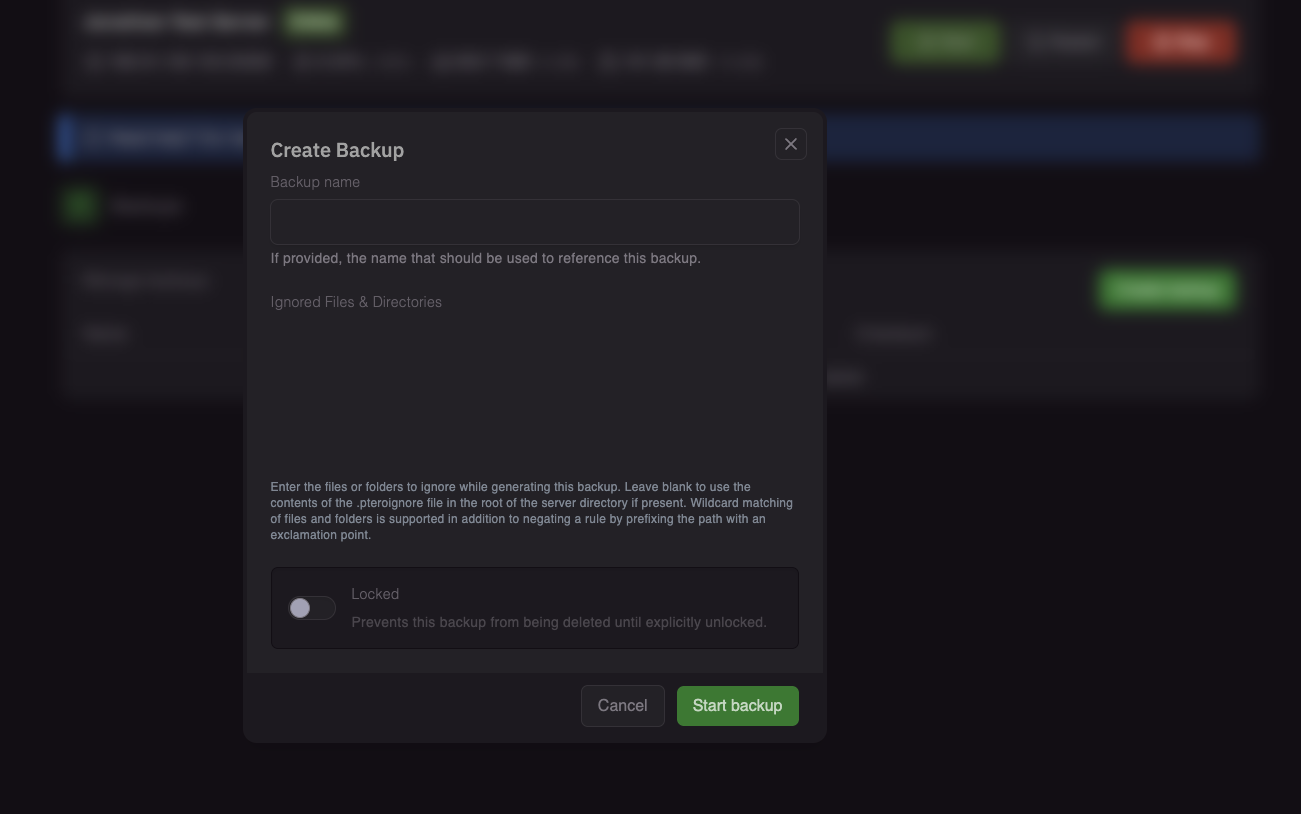
Click Create Backup
Click the Create Backup button.
-
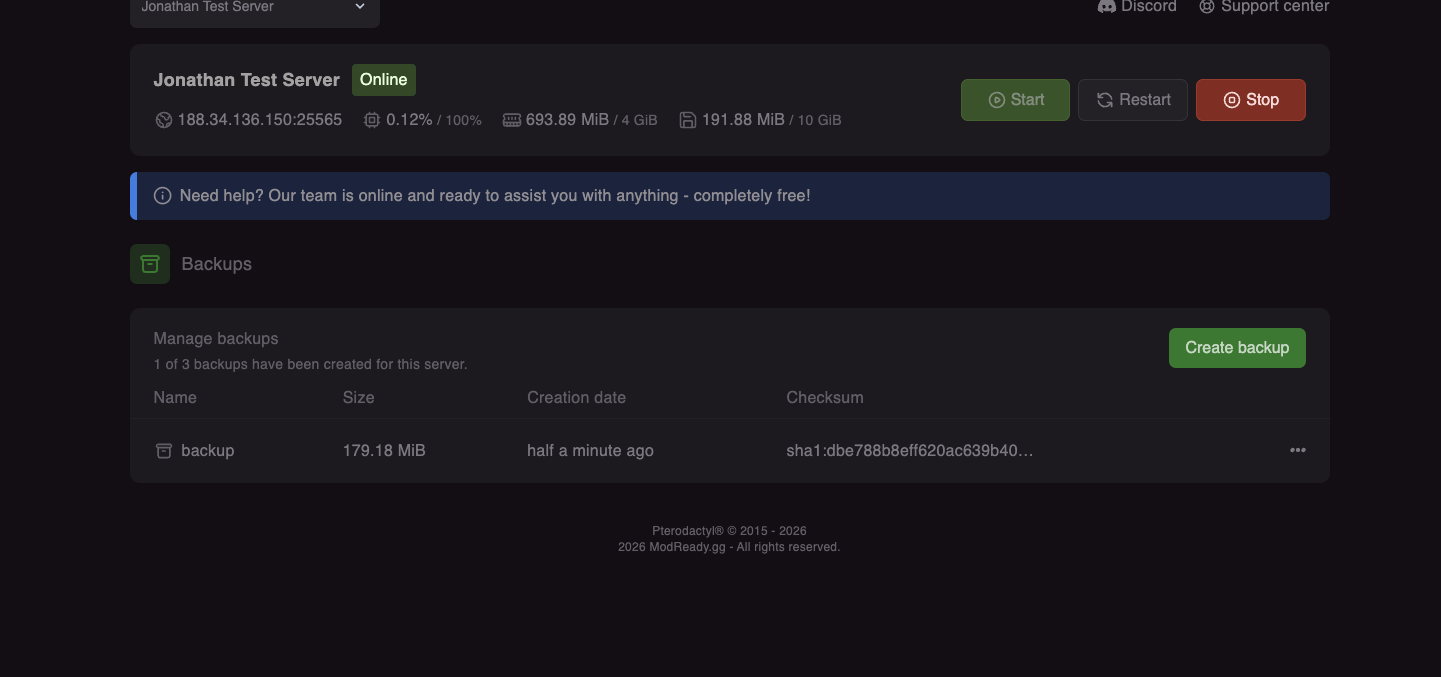
Wait for Completion
The backup will be created and uploaded to our cloud storage. This can take a few minutes depending on your server size.
Restore a Backup
Restoring a backup will replace your current server files. Any changes made after the backup was created will be lost.
-
Stop Your Server
It's recommended to stop the server before restoring a backup.
-
Go to Backups
Click Backups in the sidebar.
-
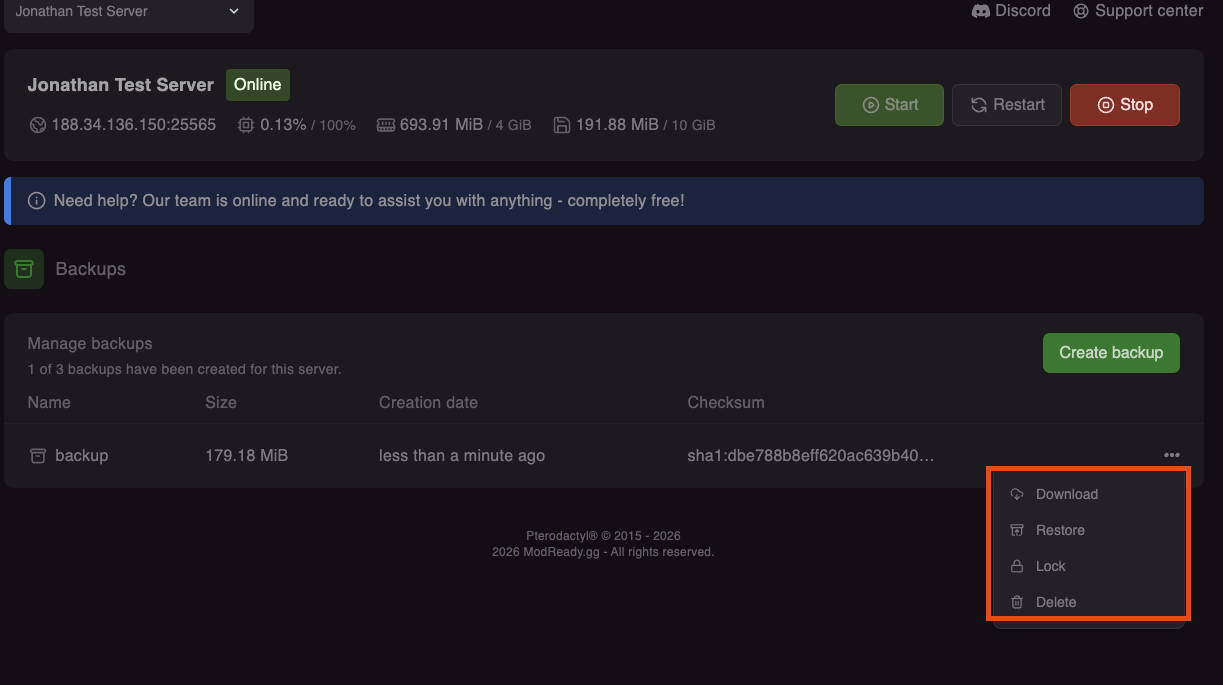
Click Restore
Find the backup you want to restore and click the Restore button (or the restore icon).
-
Start Your Server
Once the restore is complete, start your server. Your world should be back to how it was when the backup was created!
Download a Backup
You can download backups to your computer for safekeeping:
- Go to Backups
- Click the Download button next to the backup
- Save the
.tar.gzfile to your computer
Backup Limits
| What | Limit |
|---|---|
| Maximum backups per server | 3 backups |
| Backup retention | Until you delete them |
If you have 3 backups and need to create a new one, delete an old backup first.
What's Included in a Backup?
Backups include everything on your server:
- World files (overworld, nether, end)
- Player data and inventories
- Server configuration files
- Mods and plugins
- Custom configs
Tips
Always backup before: installing modpacks, adding/removing mods, updating server version, or making world changes you might regret.
For extra safety, download your most important backups to your computer. Cloud backups are secure, but having a local copy never hurts!
Need help with backups? Join our Discord!