Install a Modpack
Install popular modpacks like All The Mods, Better MC, Cobblemon, RLCraft, and more with just a few clicks.
Installing a modpack will delete all existing files on your server. Create a backup first if you have a world you want to keep!
Install from the Panel
-
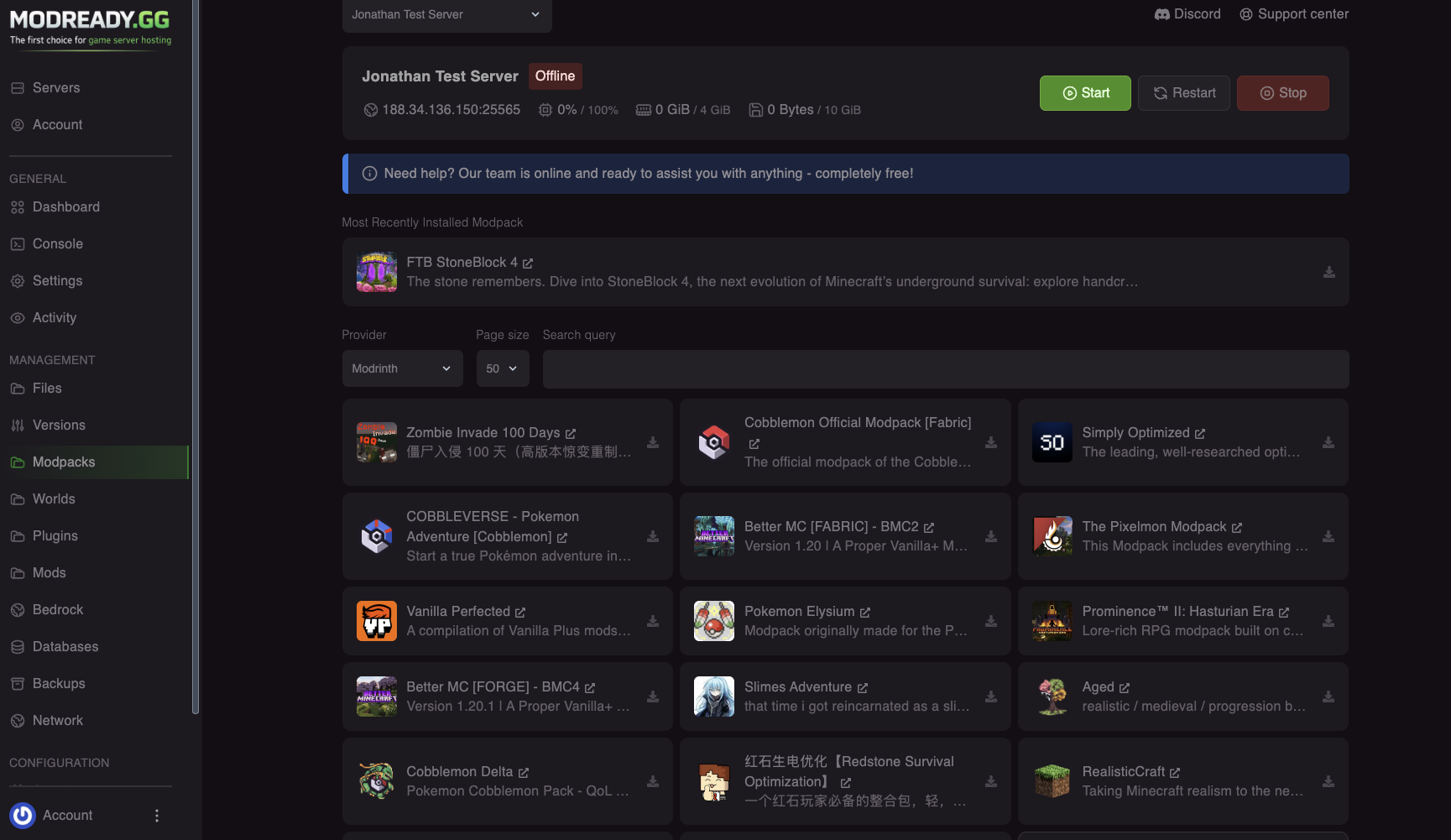
Open the Modpacks Tab
In your server dashboard, click Modpacks in the left sidebar.
-
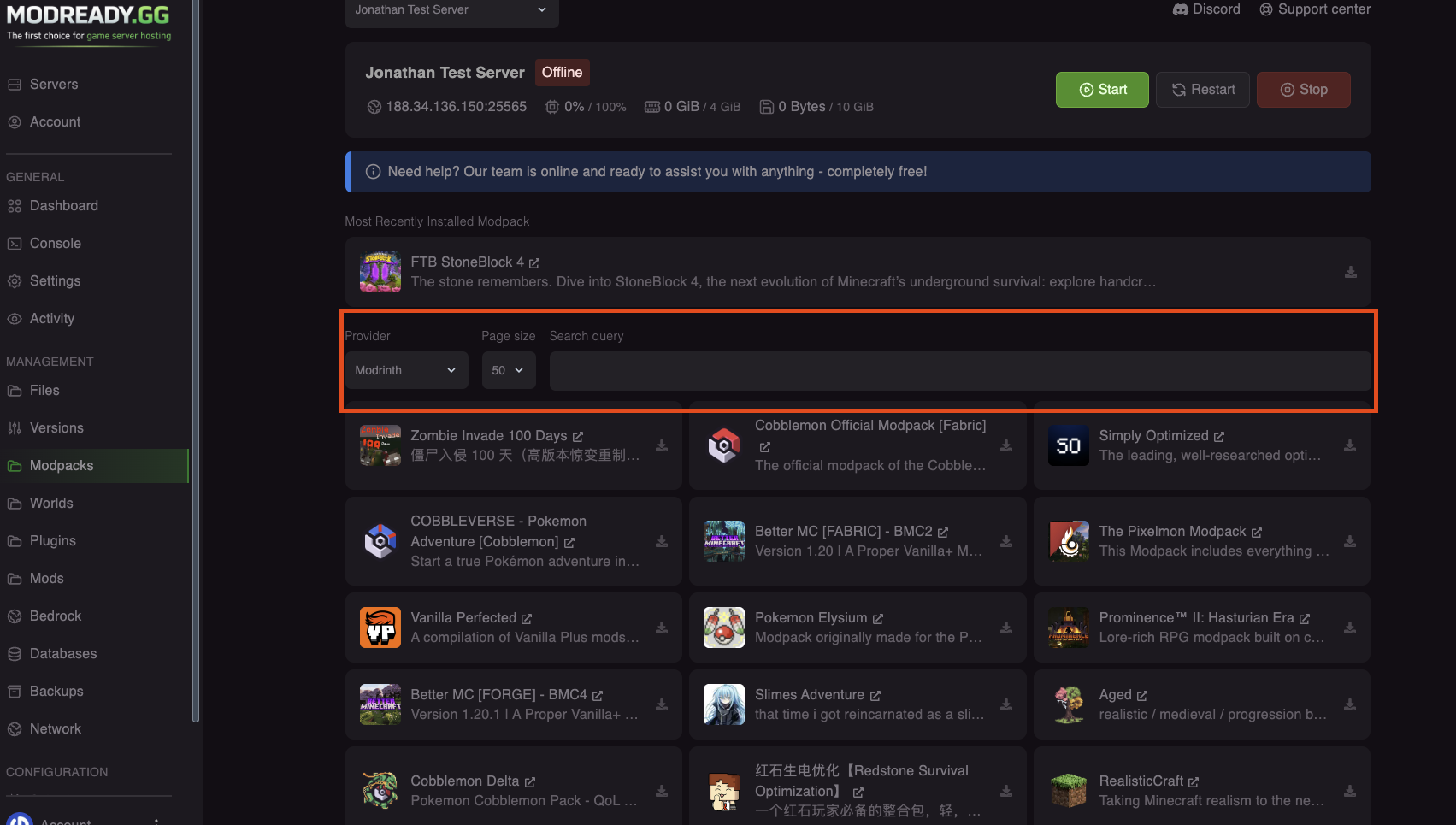
Search for a Modpack
Use the search bar to find your desired modpack. You can search from CurseForge, Modrinth, and more.
-
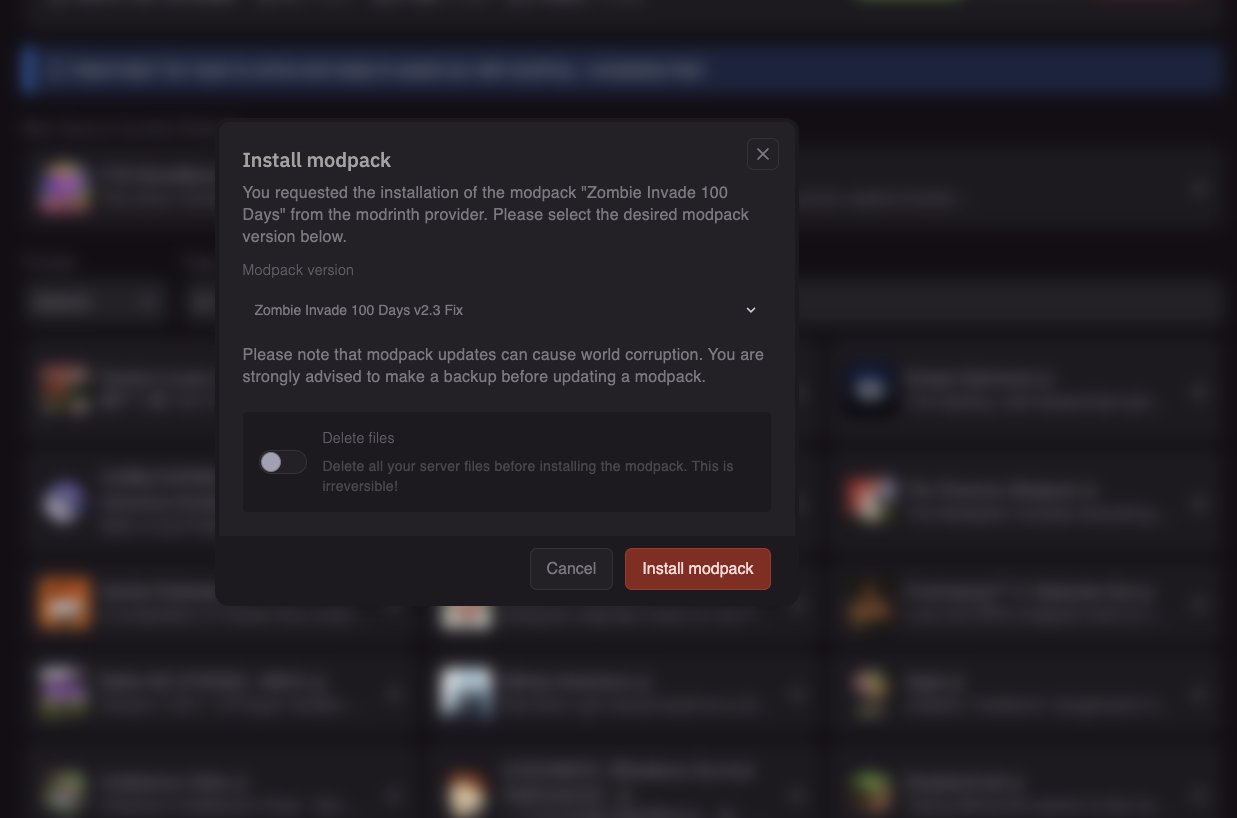
Click Install
Find the modpack you want and click the Install button.
-
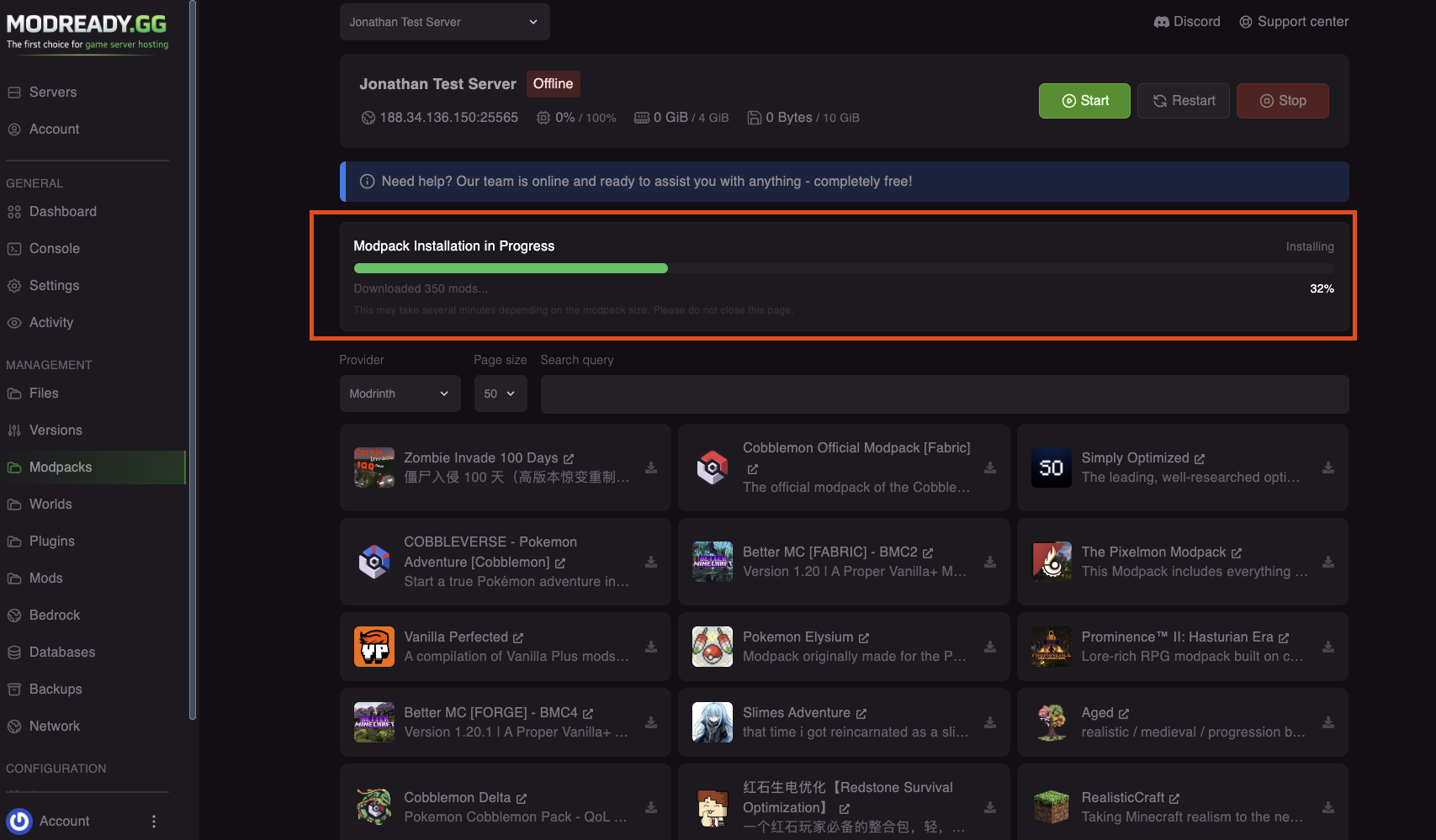
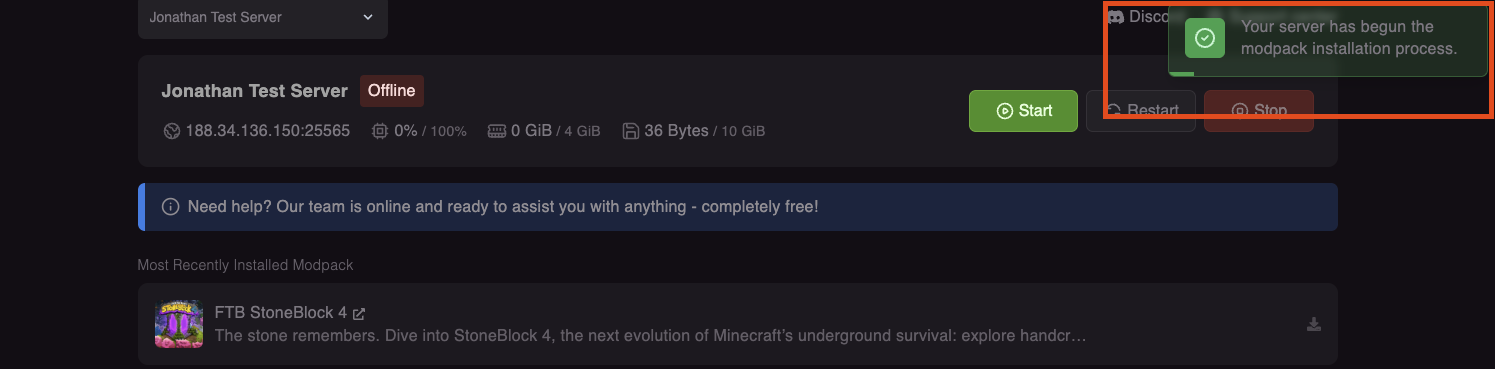
Track the Progress
A progress bar will appear at the top of the page showing the installation status. You can see:
- Current step (Configuring, Installing, Finalizing)
- Progress percentage
- Number of mods downloaded
💡 Don't see the progress bar?If you don't see the progress indicator, try refreshing the page. The progress bar updates automatically every few seconds.
-
Wait for Installation
The installation process will:
- Configure your server with the correct Minecraft version
- Set up the mod loader (Forge/Fabric/NeoForge)
- Download all the mods
- Start your server automatically
This can take 2-10 minutes depending on the modpack size. Don't close the page!
-
Done!
Once installed, your server will start automatically. You can now connect!
Verify the Installation
Want to make sure the modpack installed correctly? Check the files:
-
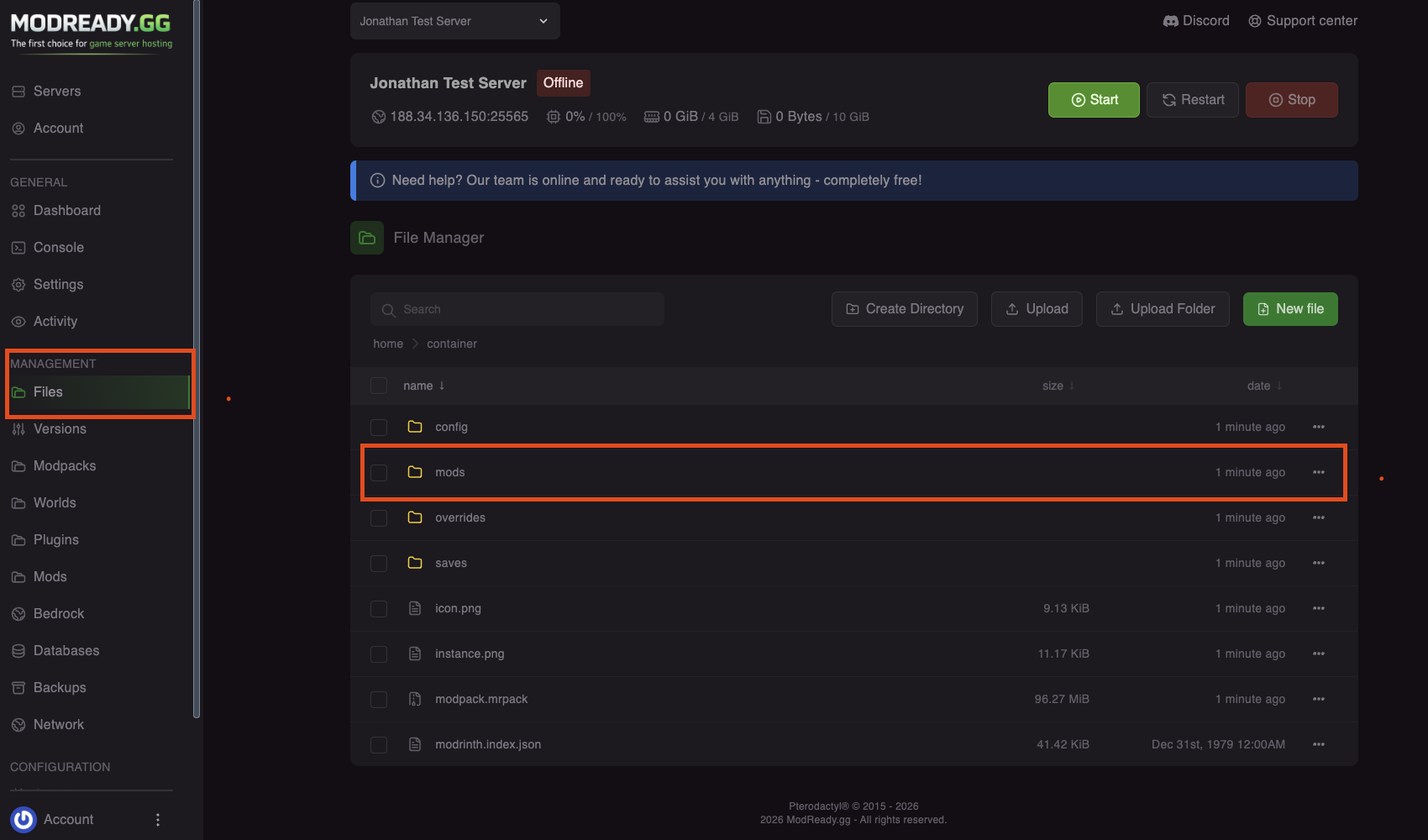
Open the Files Tab
In your server dashboard, click Files in the left sidebar.
-
Check the Mods Folder
Click on the
modsfolder. You should see all the mod files (.jar files) from the modpack.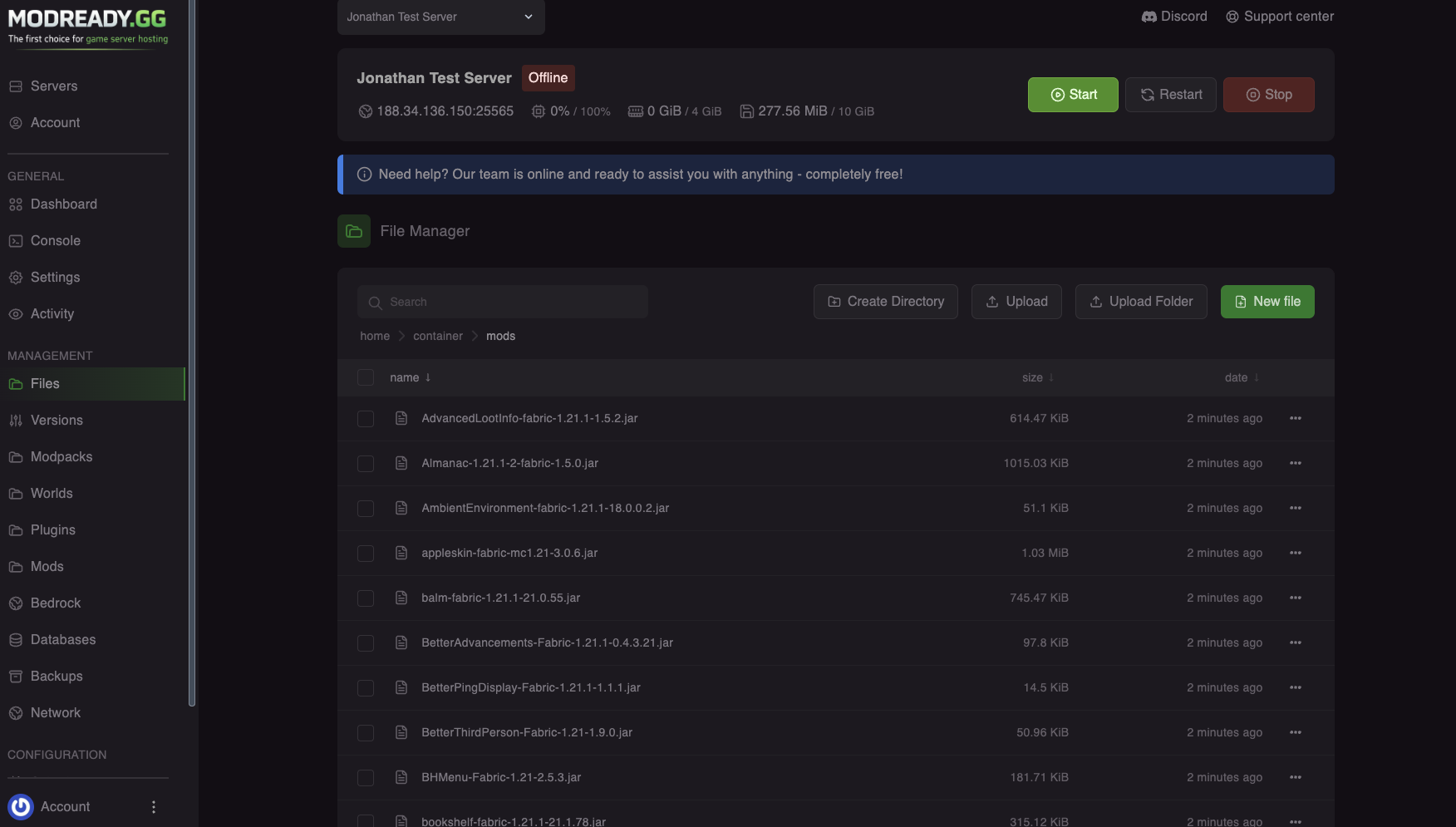
-
Check the Config Folder
Go back and check the
configfolder. This contains all the mod configurations.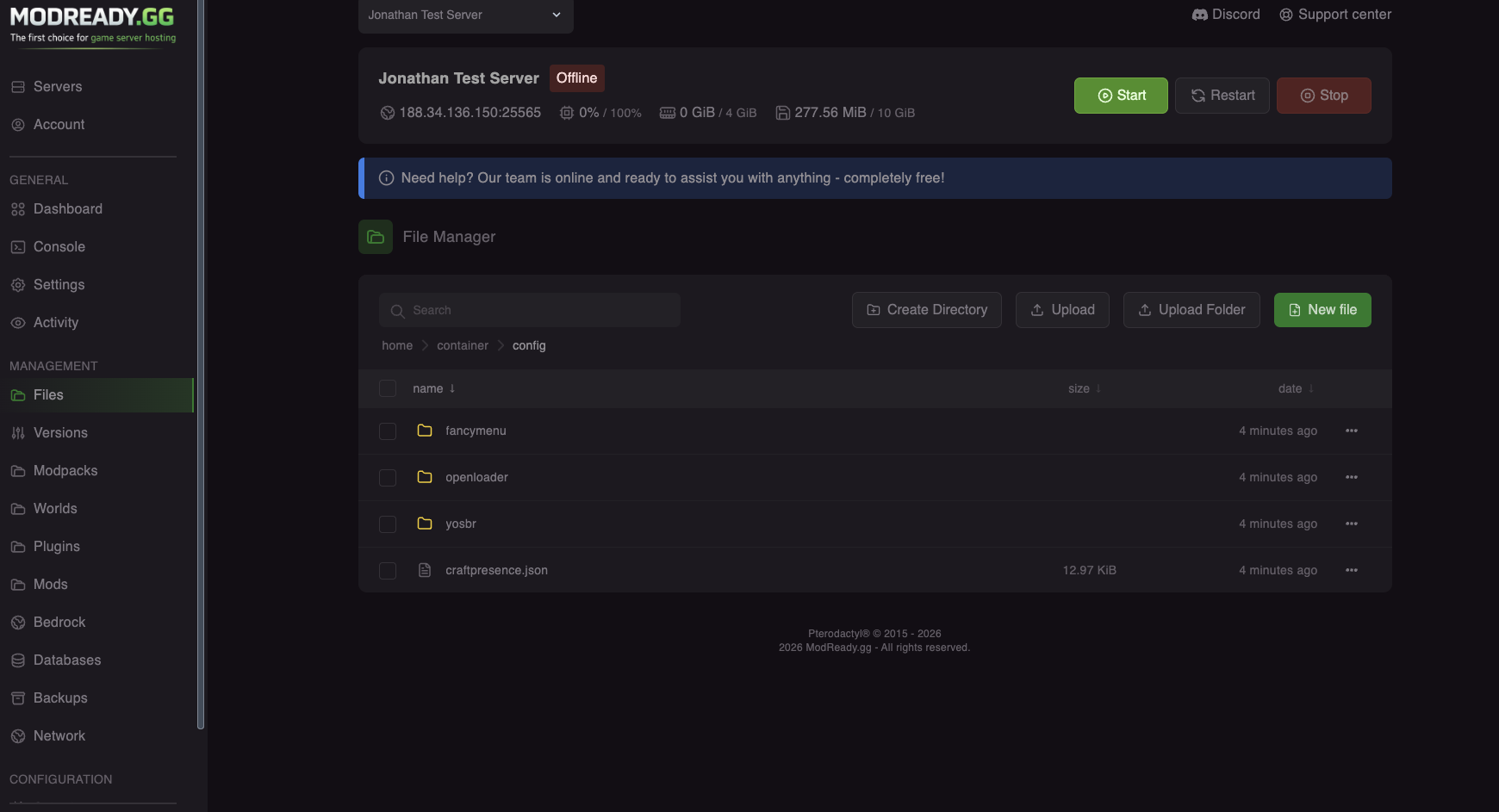
A successful installation will have:
• mods/ folder with .jar files (the actual mods)
• config/ folder with mod settings
• Sometimes a kubejs/ or defaultconfigs/ folder depending on the modpack
Connect to Your Modded Server
To connect to a modded server, you must have the exact same modpack installed on your Minecraft client.
Option 1: CurseForge App (Easiest)
- Download and install CurseForge App
- Click Minecraft → Browse Modpacks
- Search for the same modpack you installed on your server
- Click Install
- Once installed, click Play, then connect to your server
Option 2: Prism Launcher
- Download and install Prism Launcher
- Click Add Instance → CurseForge or Modrinth
- Search for the modpack and install it
- Launch and connect to your server
Popular Modpacks
| Modpack | Type | Description |
|---|---|---|
| All The Mods 9 | Kitchen Sink | Huge modpack with 400+ mods. Needs 8GB+ RAM. |
| Better MC | Vanilla+ | Enhances vanilla gameplay with QoL mods. |
| Cobblemon | Pokemon | Pokemon in Minecraft! Catch and battle. |
| RLCraft | Hardcore | Extremely difficult survival experience. |
| Vault Hunters | Adventure | Dungeon crawling and progression. |
Troubleshooting
Install button doesn't work
- Try refreshing the page
- Make sure your server is stopped before installing
- Try a different browser (Chrome works best)
Installation fails or gets stuck
- Some large modpacks take up to 10 minutes - be patient
- If it fails, try again - sometimes downloads timeout
- Contact support if it keeps failing
Server crashes after install
- Check if you have enough RAM for the modpack
- Large modpacks (ATM9, etc.) need at least 8GB RAM
- Consider upgrading your plan if needed
Need help? Join our Discord for support.