File Manager
Browse, edit, upload, and download files on your server directly from the panel.
Open the File Manager
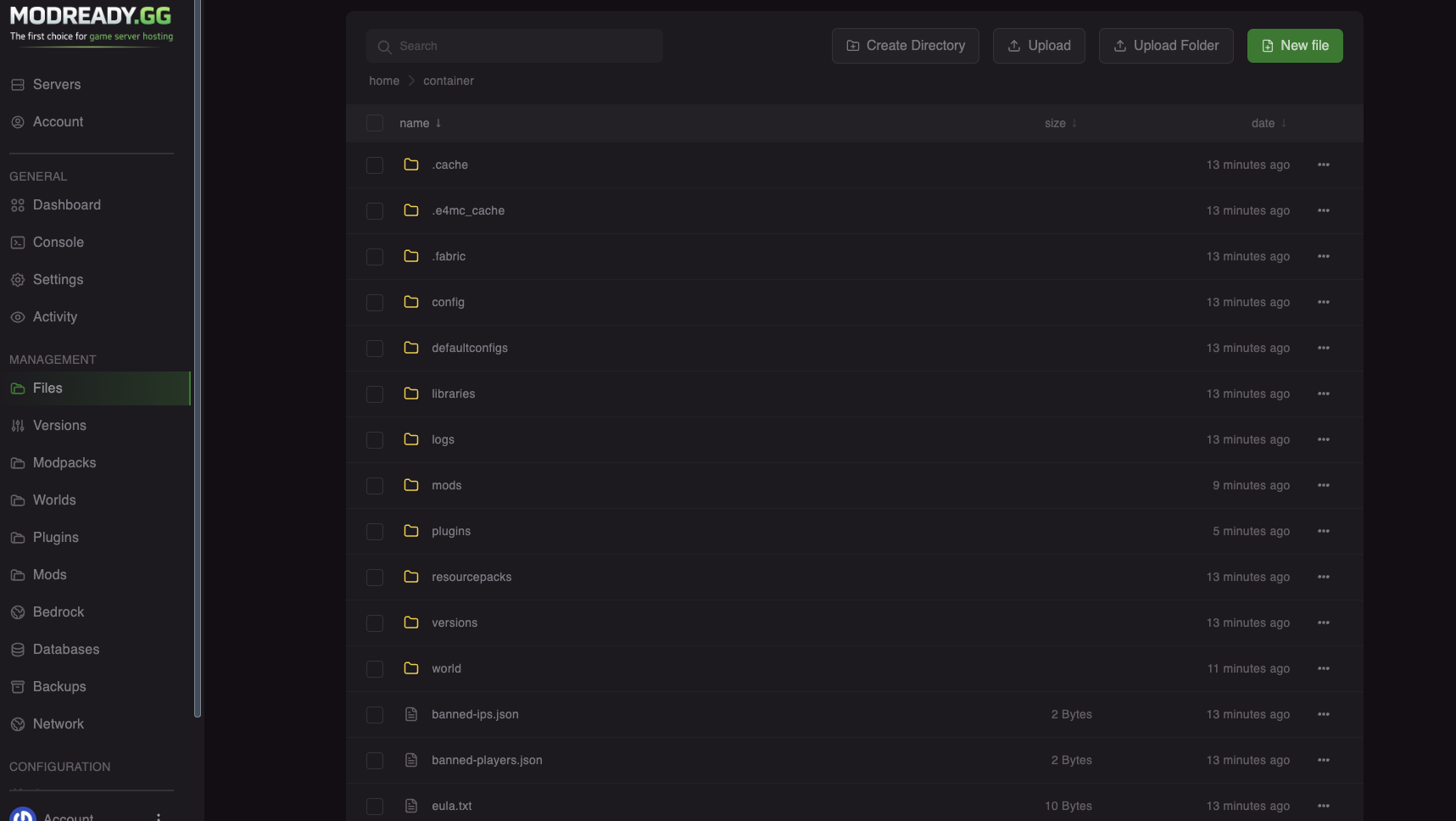
In your server dashboard, click Files in the left sidebar.
Important Folders
| Folder | What's inside |
|---|---|
world/ |
Your main world (overworld) |
world_nether/ |
Nether dimension |
world_the_end/ |
End dimension |
mods/ |
Mod files (Forge/Fabric) |
plugins/ |
Plugin files (Paper/Spigot) |
config/ |
Mod configuration files |
logs/ |
Server logs (useful for debugging) |
Important Files
| File | What it does |
|---|---|
server.properties |
Main server settings (difficulty, gamemode, etc.) |
ops.json |
List of server operators (admins) |
whitelist.json |
List of whitelisted players |
banned-players.json |
Banned players list |
eula.txt |
Minecraft EULA agreement (must be true) |
Common Tasks
Upload Files
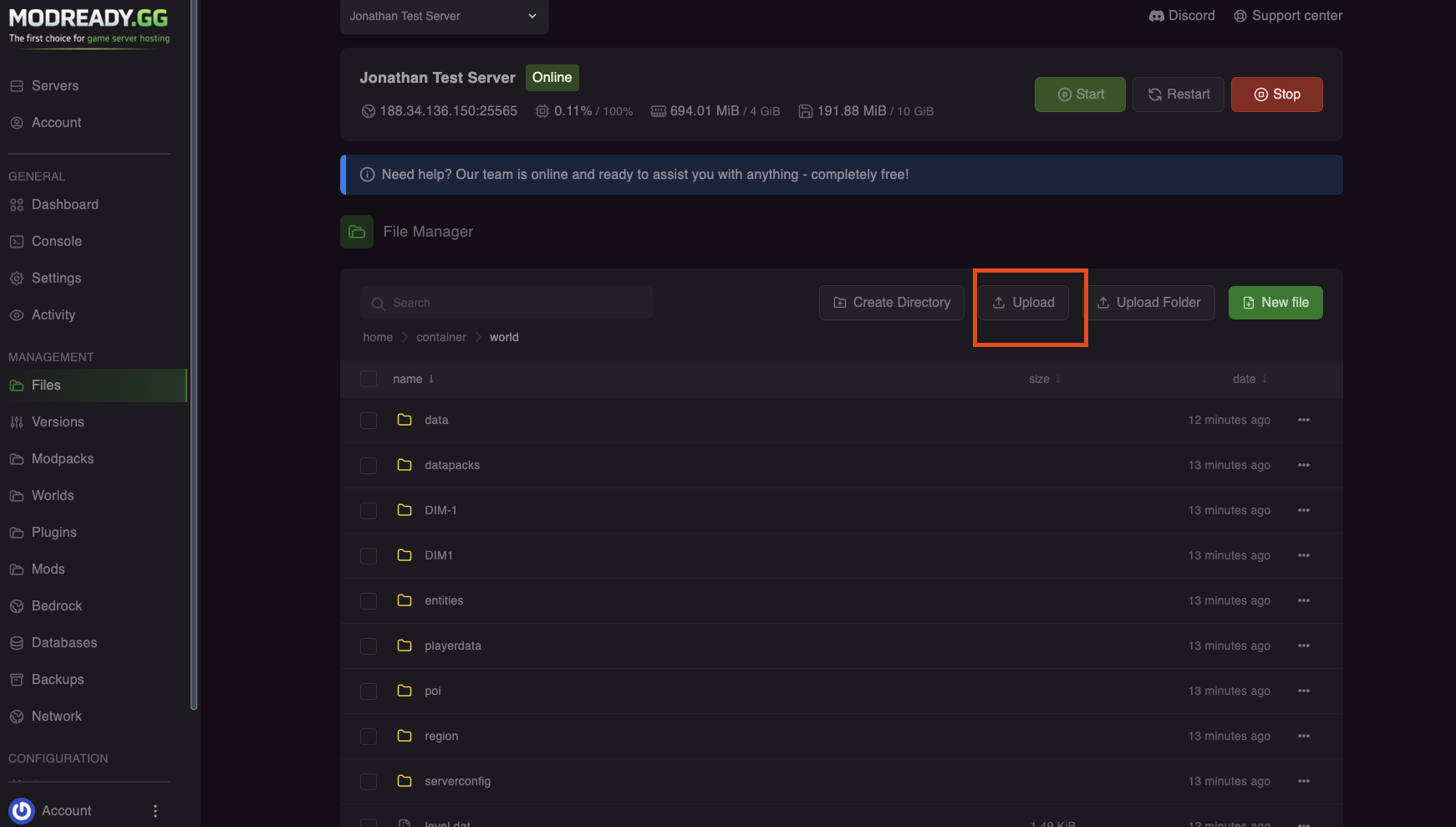
- Navigate to the folder where you want to upload
- Click the Upload button
- Select your file(s)
- Wait for upload to complete
💡 Upload a World
To upload a world, zip your world folder, upload the .zip to the server root, then right-click it and select Unarchive.
Download Files
- Find the file you want to download
- Click the three dots menu (...)
- Select Download
Edit Files
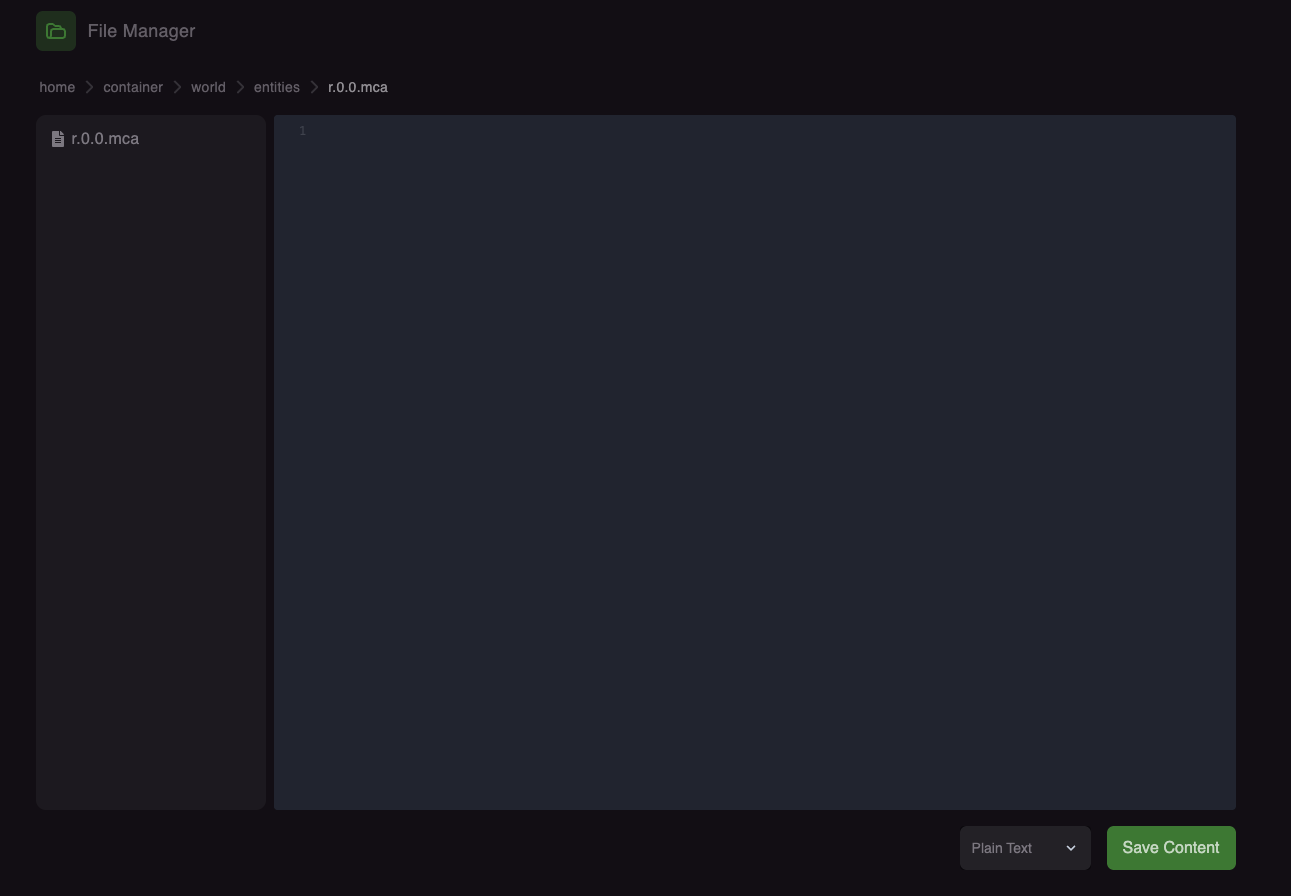
- Click on a text file (like .properties, .yml, .json)
- The built-in editor will open
- Make your changes
- Click Save
- Restart your server for changes to take effect
Create New File or Folder
- Click New File or New Folder button
- Enter the name
- Click Create
Delete Files
- Select the file(s) or folder(s)
- Click the Delete button or right-click → Delete
- Confirm deletion
⚠️ Be careful!
Deleting files is permanent! Make a backup before deleting important files like worlds.
Extract ZIP Files
- Upload your .zip file
- Click on the .zip file or right-click it
- Select Unarchive
- Files will be extracted to the current folder
Compress Files
- Select the files/folders you want to compress
- Right-click and select Archive
- A .tar.gz file will be created
Edit server.properties
The server.properties file controls basic server settings:
| Setting | What it does | Values |
|---|---|---|
difficulty |
Game difficulty | peaceful, easy, normal, hard |
gamemode |
Default gamemode | survival, creative, adventure, spectator |
pvp |
Player vs Player combat | true, false |
max-players |
Maximum players allowed | Any number |
motd |
Server description in server list | Any text |
white-list |
Enable whitelist | true, false |
spawn-monsters |
Spawn hostile mobs | true, false |
spawn-animals |
Spawn passive mobs | true, false |
💡 After editing
Always restart your server after editing server.properties for changes to take effect.
SFTP Access
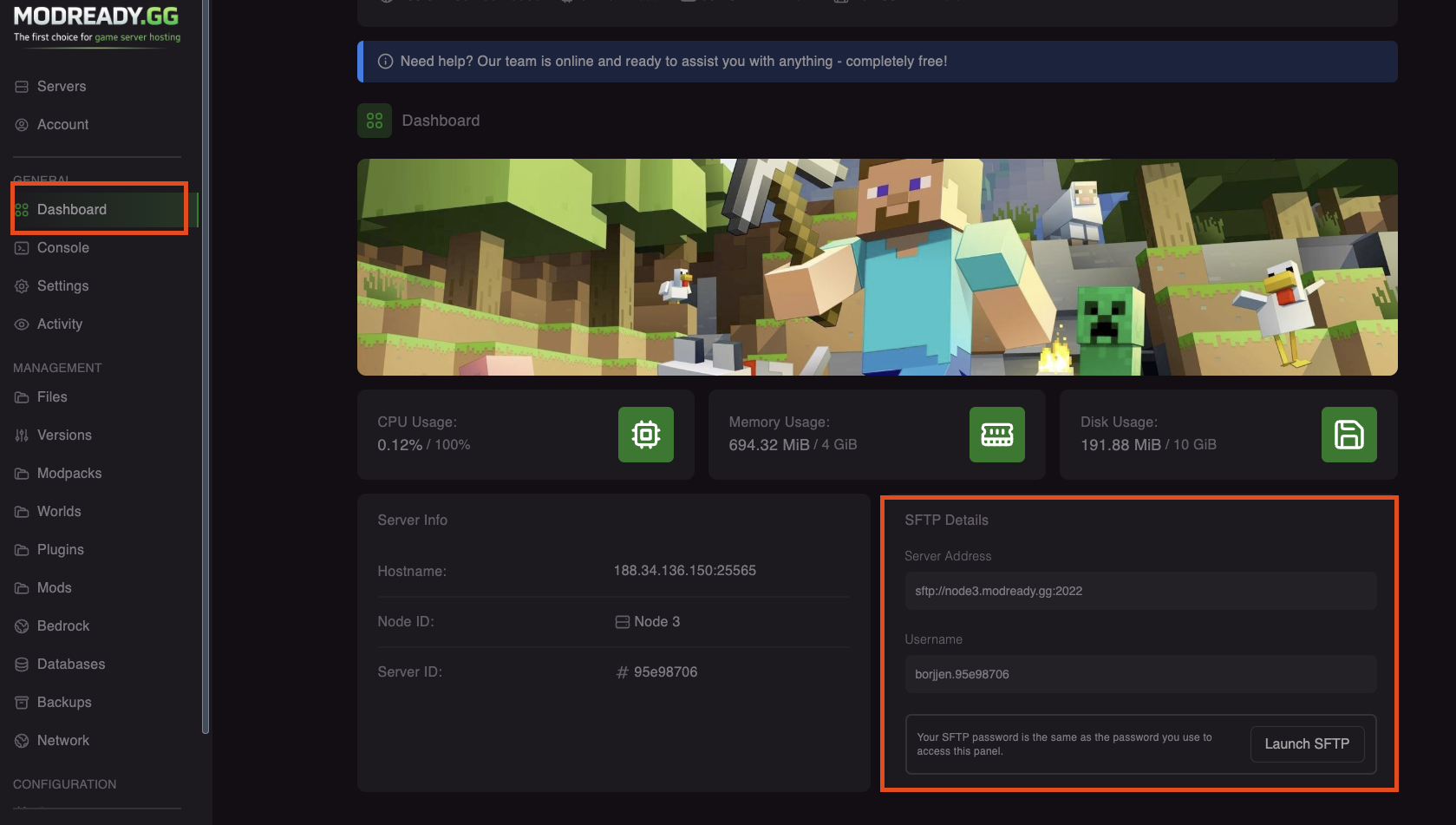
For faster uploads of large files (like world backups), use SFTP:
- Download an SFTP client like FileZilla or WinSCP
- In the panel, go to Settings to find your SFTP details
- Connect using those credentials
Need help with files? Join our Discord!