Connect to Your Server
Learn how to find your server address and connect using Minecraft Java Edition or Bedrock Edition.
Find Your Server Address
Your server IP and port can be found in the panel. Here's how:
-
Log in to the Panel
Go to panel.modready.gg and log in with your email and password.
-
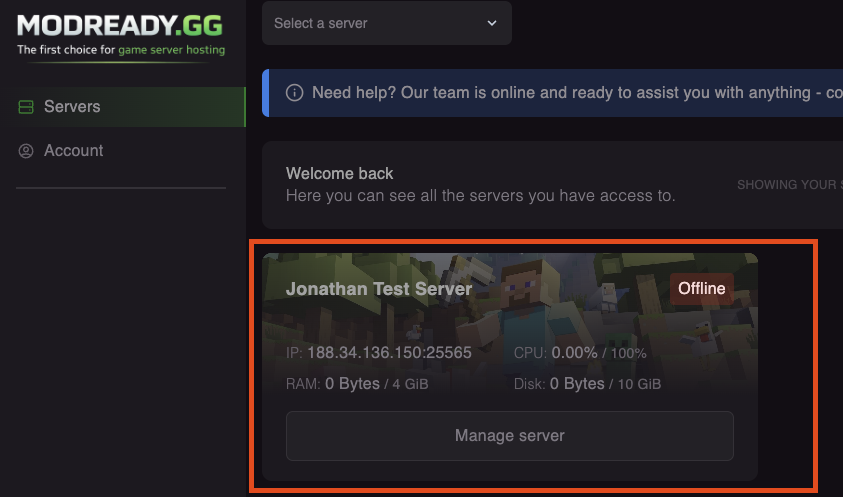
Select Your Server
Click on your server from the list to open the server dashboard.
-
Find the Connection Address
Your server address is shown at the top of the dashboard. It looks like:
123.456.789.10:25565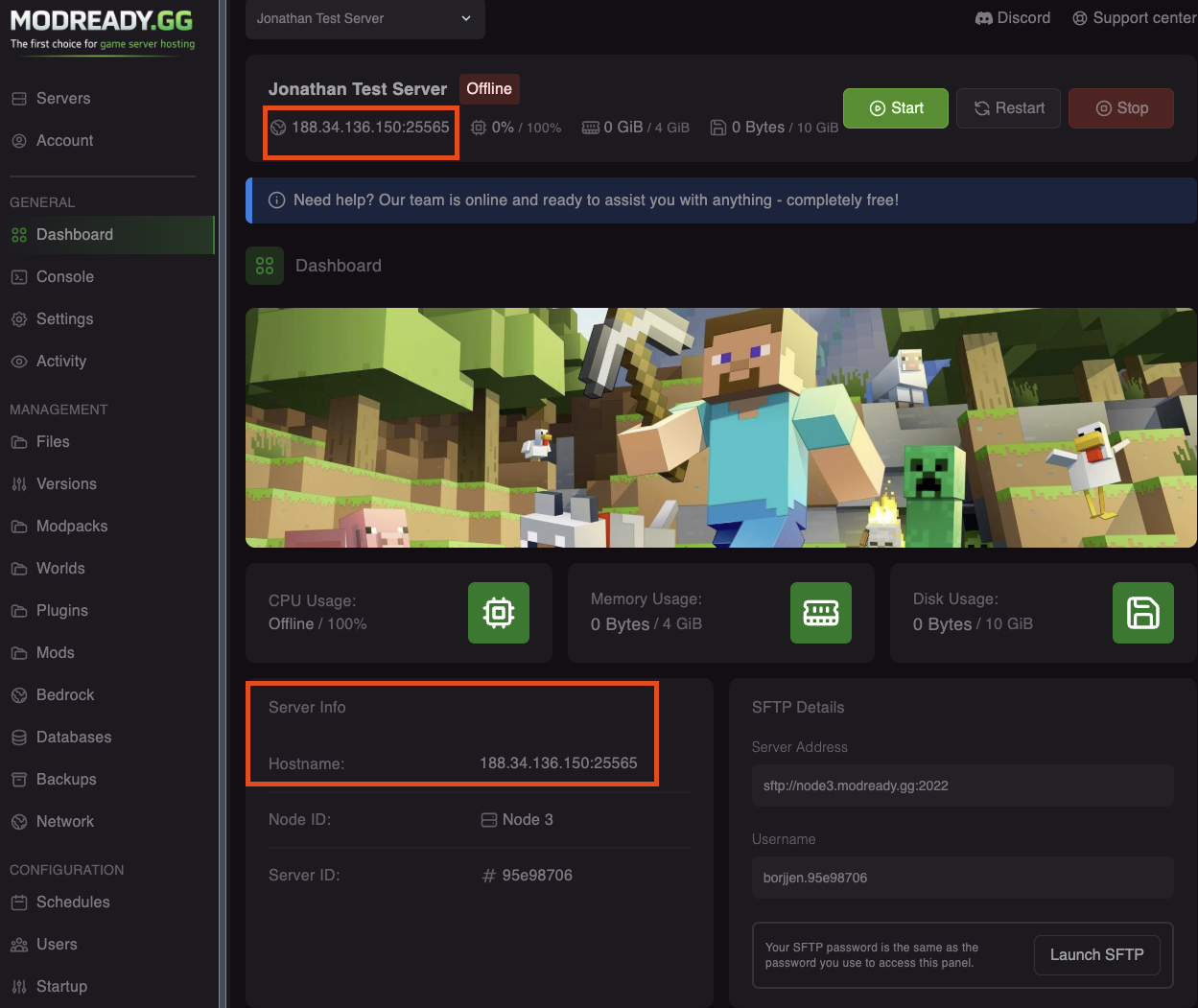
Connect with Java Edition
-
Open Minecraft
Launch Minecraft Java Edition and click Multiplayer.
-
Add Server
Click Add Server (or Direct Connect for a quick test).
-
Enter Server Address
Paste your server address (e.g.,
123.456.789.10:25565) and click Done.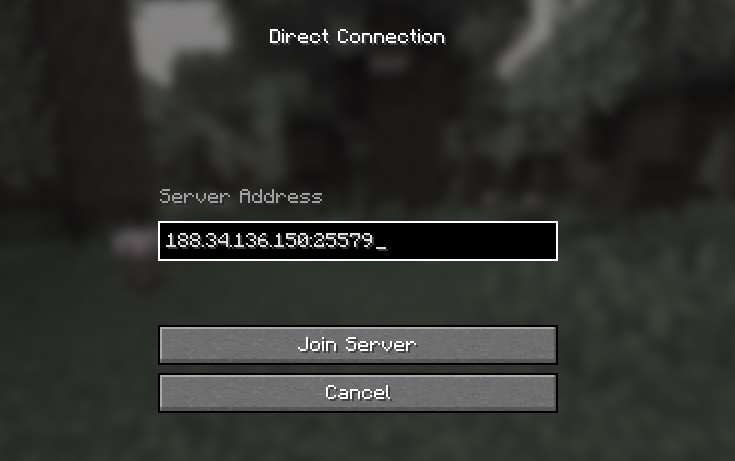
-
Join!
Select your server and click Join Server.
If your server has mods (Forge/Fabric), you need the same mods installed on your client. See Install a Modpack for details.
Connect with Bedrock Edition
Bedrock Edition (phone, console, Windows 10) requires Geyser to be installed on your server.
If you haven't enabled Bedrock crossplay yet, see Bedrock Crossplay Setup.
-
Open Minecraft Bedrock
Launch Minecraft on your phone, tablet, console, or Windows 10.
-
Go to Servers Tab
Click Play → Servers tab → scroll down to Additional Servers.
-
Add Server
Click Add Server and enter:
Field Value Server Name Anything you want Server Address Your IP (e.g., 123.456.789.10)Port Your Bedrock port (e.g., 19132) -
Join!
Select your server and tap Join Server.
Common Issues
"Can't connect to server"
- Make sure your server is running (check the panel)
- Double-check the IP and port - make sure you copied it correctly
- If using mods, make sure your client has the same mods
"Outdated server" / "Outdated client"
- Your Minecraft version doesn't match the server version
- Check which version your server runs in the panel
- Launch Minecraft with the matching version
Still having issues? See Troubleshooting: Can't Connect or join our Discord for help.